
Tech Tips & How-Tos

Setting Up a New Laptop the Right Way From Day One

Setting Up a New Laptop the Right Way From Day One

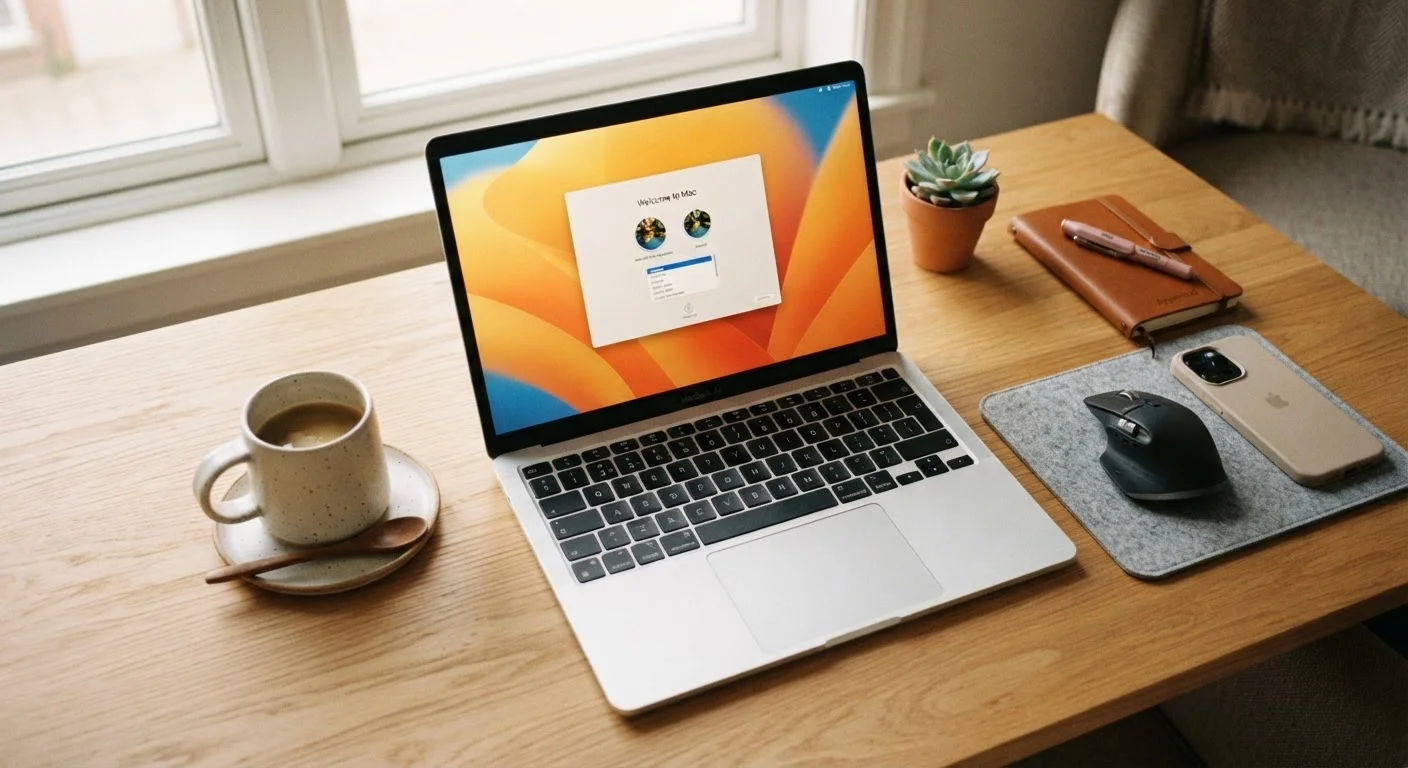
Photo: ConfiReads.com | Blogs For Inquisitive Minds editorial

The first hour with a new laptop sets the tone for years of use. Here's a step-by-step setup routine that saves headaches later.

Key Takeaways

  • Running updates and enabling security settings on day one prevents the most common vulnerabilities.
  • Creating a separate user account for everyday use keeps your administrator access protected.
  • A solid backup routine established early saves you from catastrophic data loss later.
  • Uninstalling bloatware right away improves performance and reduces security risk.
  • Connecting to a stable Wi-Fi network before setup ensures a smoother, complete installation.

Why Your First Setup Session Actually Matters

Most people power on a new laptop, rush through the setup wizard, and immediately start browsing or downloading apps. That approach works — until it doesn't. Skipping foundational steps during initial setup is one of the most common reasons laptops run slowly, get compromised, or lose data within the first year of use.

Whether you're setting up a Windows PC or a MacBook, the choices you make in the first hour establish security habits, performance baselines, and data protection that will follow the machine for its entire life. If you haven't decided yet whether a laptop is even the right device for your needs, see our guide on choosing between tablets and laptops before unboxing.

This checklist walks you through every essential step — in the right order — so you don't have to fix problems later that were easy to prevent up front.

Required

Power adapter

Keeps the laptop charged throughout setup so updates and restarts don't interrupt the process.

Required

Wi-Fi network credentials

Required to connect during setup for account login, system updates, and cloud backup configuration.

Optional

External hard drive (1 TB or larger)

Used to create a local backup with Time Machine or Windows File History as a second layer of data protection.

Optional

Password manager app

Stores and generates strong, unique passwords for every account you set up on the new machine.

Required

Microsoft or Apple account credentials

Required to activate the operating system, sync settings, and enable cloud backup from day one.

The Complete Laptop Setup Checklist

Work through these groups in order. Some steps take only seconds; others, like running a full system update, may require patience. Keep your laptop plugged in throughout the entire process.

Before You Begin

Plug the laptop into power and keep it connected for the entire setup session to prevent interruptions during updates. Must
Connect to your home Wi-Fi network before advancing past the first setup screen so all accounts and updates sync properly. Must
Have your Apple ID, Microsoft account email, or Google account credentials ready before starting. Must
Gather any license keys or software installer files you purchased separately so they're ready to enter. Should

Account & Security Setup

Create a strong, unique password for your main user account — avoid using the same password you use for email or banking. Must
Enable two-factor authentication on your Microsoft, Apple, or Google account tied to this device. Must
Set up a standard (non-administrator) user account for everyday use, reserving the admin account for software installation only. Should
Enable the built-in screen lock and set it to activate after no more than five minutes of inactivity. Must
Turn on disk encryption — FileVault on Mac, BitLocker on Windows — to protect stored data if the laptop is lost or stolen. Must

Updates & Software

Run a full operating system update immediately and restart when prompted, even if the laptop shipped recently. Must
Check for firmware or driver updates using your manufacturer's support tool (e.g., HP Support Assistant, Dell Update, Apple Software Update). Should
Uninstall trial software and manufacturer bloatware that came preinstalled — these slow performance and may create security gaps. Should
Install a reputable browser of your choice and set it as the default if you prefer an alternative to the preinstalled one. Nice to have
Verify that the built-in firewall is turned on in your system's security or privacy settings. Must

Backup & Data Protection

Set up an automatic cloud backup (iCloud, OneDrive, or Google Drive depending on your platform) before storing any personal files. Must
Connect an external hard drive and configure Time Machine (Mac) or File History (Windows) for a local backup copy. Should
Write down or securely store your recovery key for disk encryption in a safe place outside the device. Must

Comfort & Accessibility

Adjust display resolution, text size, and brightness to a comfortable level before spending extended time on the machine. Should
Enable accessibility features — such as closed captions, voice control, or magnification — if you use them on other devices. Nice to have
Set your correct time zone, region, and language preferences to ensure apps and calendars function accurately. Must
Configure a password manager and import or create your credentials so you don't rely on insecure browser-saved passwords from the start. Should

Don't Skip Updates Just to Start Using It Faster

It's tempting to dismiss the initial update prompt and dive right in, but a laptop that ships without its latest security patches is already behind. Many vulnerabilities are actively exploited within days of being publicly disclosed. Running updates before anything else — including connecting accounts or entering passwords — is one of the highest-impact steps in this entire checklist.

Once you've finished setup, your home network is the next layer of protection to think about. Our guide to setting up a home Wi-Fi network walks you through securing your router and optimizing your connection. And if you're also setting up a new phone, the process shares some similarities — the smartphone setup walkthrough covers data transfer and account migration in detail.

Building Good Habits After Setup

Finishing the checklist is the beginning, not the end. Treat your backup schedule as a recurring appointment — monthly at minimum, weekly if the machine is your primary work device. Keep your operating system and apps updated as prompts arrive rather than dismissing them repeatedly.

If you also need to sort out internet service for a new home or apartment, our home internet basics guide explains everything from choosing an ISP to understanding the equipment you're renting or buying.

Store Your Recovery Key Somewhere Safe

When you enable disk encryption, your device generates a recovery key — a long alphanumeric code that unlocks your drive if you're ever locked out. If you lose this key and forget your password, your data is unrecoverable, even by the manufacturer. Write it down and store it somewhere physically secure, or save it to a separate trusted account that you can access from another device.

A laptop set up carefully from day one rarely needs a dramatic rescue later. The hour you invest now is the most efficient tech support you'll ever give yourself.

Tech & Electronics Editorial Team

ConfiReads.com | Blogs For Inquisitive Minds

Tech & Electronics Editorial Team is the collective byline for our editorial team and contributor network. Articles published under this byline or an editorial pen name are researched, written, and reviewed according to our editorial standards for clarity, consistency, and independence before publication.

Devices & GadgetsTech Tips & How-TosInternet & Connectivity
View author profile

The content on this site is for informational purposes only and is not a substitute for professional advice. Always consult a qualified professional for guidance specific to your situation.