
Everything Inside the Settings Menu You've Probably Never Touched

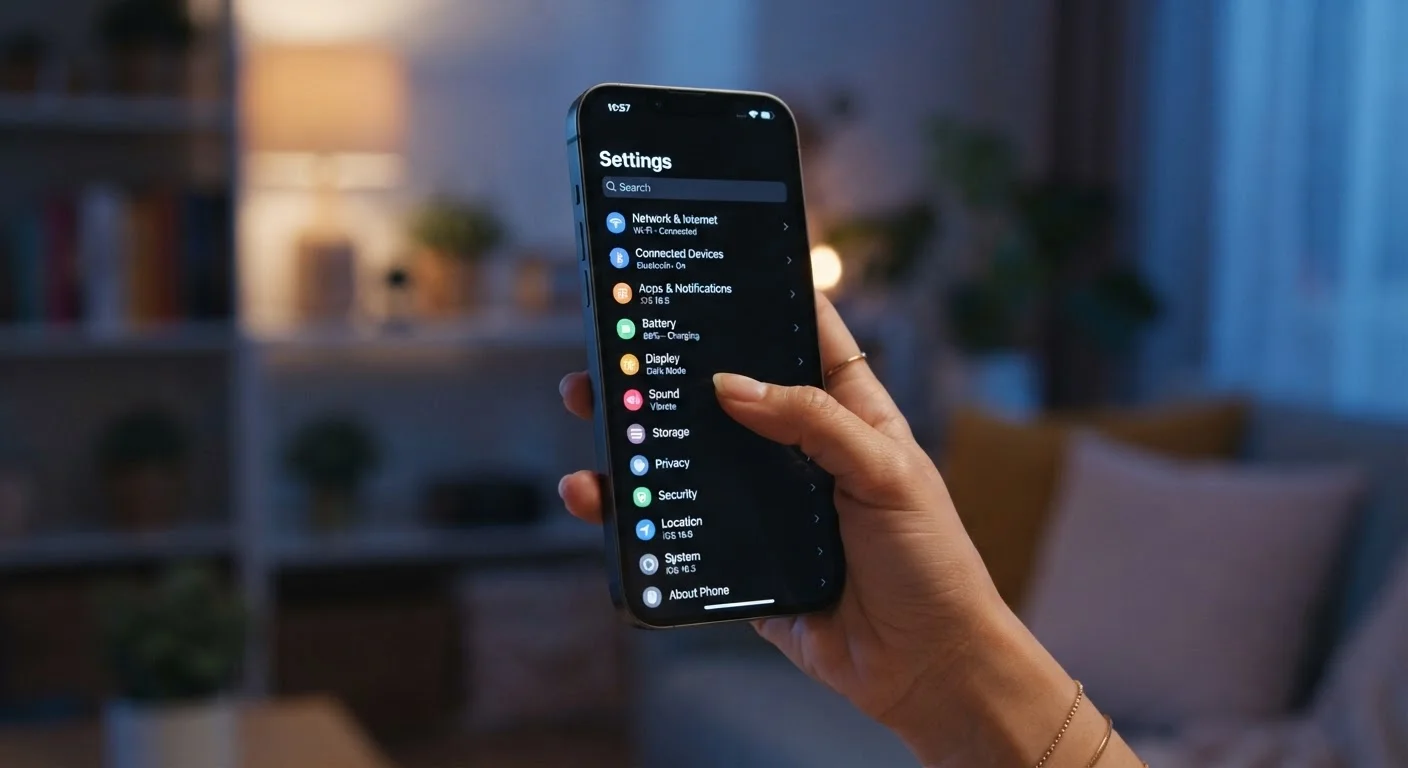
Photo: ConfiReads.com | Blogs For Inquisitive Minds editorial
Key Takeaways
- Most smartphone settings menus contain powerful features that go untouched by the average user.
- Simple toggles can improve battery life, privacy, accessibility, and storage without any technical skill.
- Both Android and iPhone share many of these hidden-in-plain-sight features — just under different names.
- Exploring your settings takes minutes and can meaningfully improve how your device works for you.
The Settings App Is More Useful Than You Think
Most people open their phone's settings for exactly two reasons: to connect to Wi-Fi or to turn off a notification that's driving them crazy. That's understandable — the settings menu is long, dense, and rarely explained anywhere. But buried inside it are tools that can extend your battery, protect your privacy, free up storage, and make your phone easier to use every day.
None of these features require a technical background to use. They're toggles, sliders, and menus designed for everyday users — they just don't come with a guided tour. This list surfaces the ones most worth knowing about, with plain-language explanations of what they actually do.
For a broader look at keeping your device in good shape, see our guide on device security basics.
Battery Usage by App
Found under Battery on both iPhone and Android, this screen shows exactly which apps are draining your power most — ranked by percentage. Most people never look here and instead wonder why their battery dies by afternoon.
If a social media app or background service is consuming an outsized share, you can restrict its background activity directly from this screen. On iPhone, look for Background App Refresh. On Android, tap the app and select Restrict background usage. A few minutes here can meaningfully extend your daily battery life.
One background app can quietly drain more battery than everything else combined.
App Permissions (Camera, Location, Microphone)
Under Privacy (iPhone) or Apps > Permissions (Android), you can see which apps have access to your camera, microphone, location, contacts, and more. Many apps request permissions they don't strictly need — and most users tap "Allow" without a second thought during setup.
A flashlight app with access to your microphone is a red flag. A shopping app that tracks your precise location around the clock is worth revisiting. You can revoke individual permissions without deleting the app, and most apps continue functioning fine with more limited access.
You can revoke app permissions at any time without uninstalling the app.
Screen Time and Digital Wellbeing
Apple calls this Screen Time; Google's version is called Digital Wellbeing. Both live in Settings and provide a breakdown of how much time you spend in each app per day and per week — including how many times you pick up your phone.
Beyond the data, these tools let you set daily limits on specific apps, schedule downtime when only certain apps are accessible, and even lock yourself out of an app after you've hit your limit. Parents can also use Screen Time to set up restrictions for children's devices.
Most users are surprised — and sometimes alarmed — by their actual daily phone use totals.
Default Apps
On Android, Settings > Apps > Default Apps lets you choose which browser, email client, phone dialer, or messaging app opens by default when you tap a link or make a call. iPhone added similar controls starting with iOS 14, allowing you to change default browsers and email apps.
If you prefer Chrome over Safari, or Gmail over Apple Mail, this is where you make that switch permanent. Without changing this, your phone will always route actions through Apple's or Google's built-in apps regardless of what you've downloaded.
Setting your preferred apps as defaults saves dozens of redirects and extra taps every week.
Keyboard and Autocorrect Settings
Under General > Keyboard (iPhone) or System > Language & Input (Android), you'll find controls for autocorrect, autocapitalization, predictive text, and text replacement shortcuts. Many users live with autocorrect frustrations for years without realizing they can turn individual features on or off.
Text replacement is especially overlooked: you can create shortcuts so that typing "omw" automatically expands to "On my way!" or your address autofills from a three-letter code. It's a small change with a noticeable quality-of-life improvement for frequent texters.
Text replacement shortcuts can save you from retyping the same phrases dozens of times a day.
Notification Management Per App
Most people either accept all notifications or mute everything. But Settings > Notifications lets you configure each app individually — choosing whether it can show banners, sounds, badges, or lock screen alerts, all separately.
You might want email notifications to appear silently on your lock screen but never make a sound, while a calendar app gets full sound and banner alerts. Dialing this in takes about ten minutes and dramatically reduces the mental noise that comes from constant interruptions. On iPhone, Focus Modes extend this further, letting you create profiles for work, sleep, and personal time.
Granular notification controls let you stay informed without being constantly interrupted.
Accessibility Features for Everyday Use
The Accessibility section in Settings is designed for users with disabilities — but many of its features are genuinely useful for everyone. Display & Text Size lets you increase text size or boost contrast if reading on your phone strains your eyes. Reduce Motion cuts down on animated transitions, which can also improve performance on older devices.
AssistiveTouch (iPhone) creates a floating on-screen button that can replicate physical button presses — useful if your home button is broken or hard to reach. Android has a similar tool called Accessibility Menu. These aren't niche tools; they solve real everyday problems.
Accessibility settings solve practical everyday problems well beyond their original intended use.
Worth Exploring Further
Once you start poking around in settings, you'll likely find features that apply specifically to your phone model or operating system version. Manufacturers — Samsung, Google, Apple, and others — add their own layers on top of the basics, so your menu may have options not covered here.
If storage is a recurring headache, our walkthrough on freeing up space on a full phone covers the practical steps for both Android and iPhone. And if you've ever wondered whether the things you've heard about phone charging and battery life are actually true, common tech myths debunked is worth a read.
Search Your Settings Menu
Settings are also where you configure automatic backups — one of the most important things you can do before your phone is lost, broken, or stolen. Our guide on setting up phone backups walks through the process step by step.
The content on this site is for informational purposes only and is not a substitute for professional advice. Always consult a qualified professional for guidance specific to your situation.