
Backing Up Your Phone Before It's Too Late

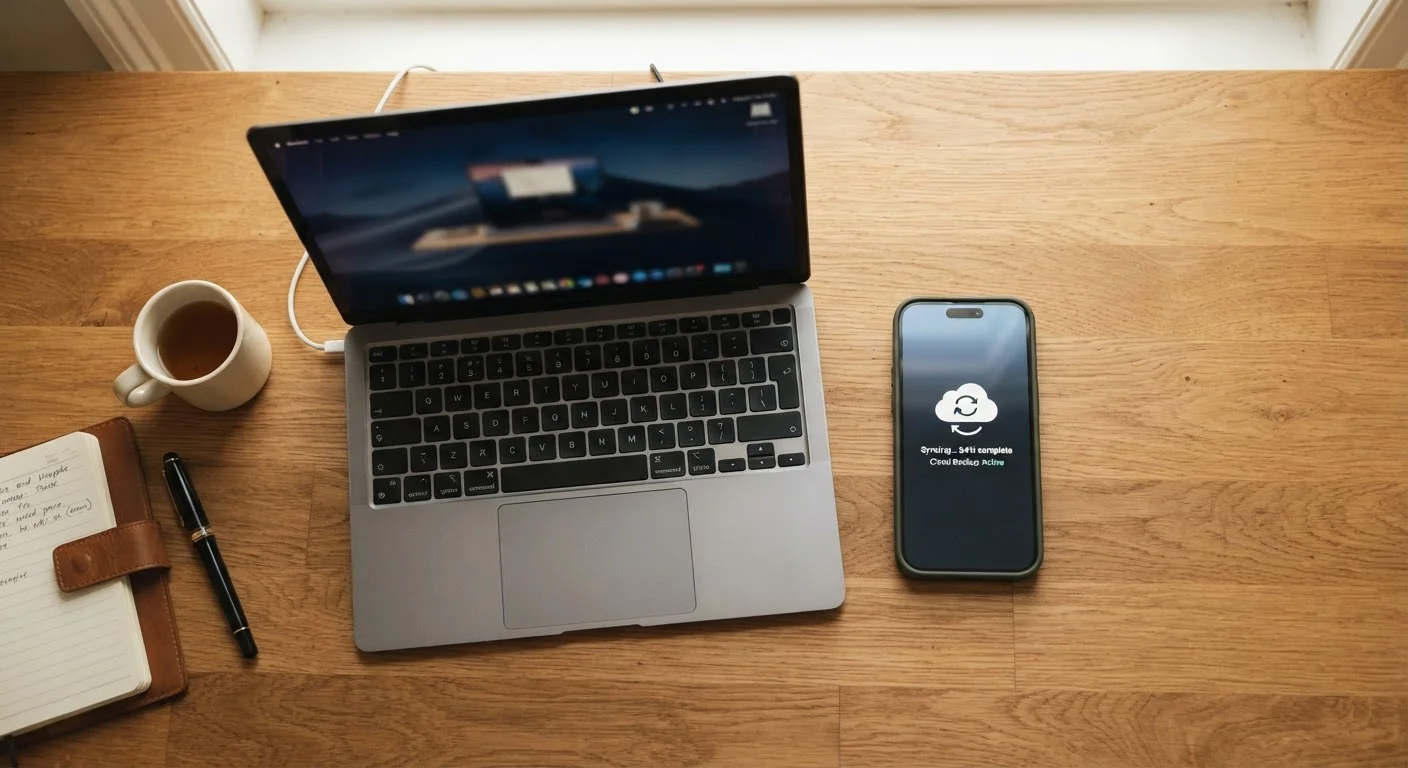
Photo: ConfiReads.com | Blogs For Inquisitive Minds editorial
Key Takeaways
- Most phones can back up automatically to the cloud with just a few taps in Settings.
- iPhone uses iCloud and Android uses Google One — both offer free storage tiers to start.
- A backup is only useful if it runs regularly; verify yours is working after setup.
- Photos, contacts, and app data are the most critical items to protect.
- You don't need to be technical to protect everything important on your phone.
Why This Can't Wait
Phones get dropped, stolen, and submerged every single day. A cracked screen is fixable. Losing five years of photos, every saved password, and your contacts list is not. The average smartphone holds more irreplaceable personal data than most people's filing cabinets — yet roughly half of US adults have never set up a backup.
The good news: modern iPhones and Android phones make automatic backups nearly effortless. The process takes under 15 minutes once, and then your phone handles it while you sleep. If you've been putting this off because it sounds complicated, this guide will prove it isn't. You might also be surprised by other hidden settings worth knowing that help your phone work better every day.
Don't Wait for Disaster to Strike
What You Need Before You Start
Before diving into the steps, make sure you have everything in place. A smooth backup setup depends on a few basics being ready.
What you will need
Once you have these ready, the actual setup takes only a few minutes per platform.
Step-by-Step: Setting Up Your Backup
Follow the steps below for your device type. iPhone and Android have separate processes, but both are designed to be straightforward. If you're unsure which steps apply, check Settings > About Phone (Android) or Settings > General > About (iPhone) to confirm your operating system.
iPhone: Turn On iCloud Backup
Open Settings and tap your name at the top to access your Apple ID. Select iCloud, then scroll down and tap iCloud Backup. Toggle Back Up This iPhone to the on position (it should turn green). Tap Back Up Now to trigger your first manual backup immediately. The screen will show the progress and display the date and time when the last backup completed.
Android: Turn On Google Backup
Open Settings and search for Backup using the search bar at the top, or navigate to System > Backup (exact path varies slightly by manufacturer). Tap Google One backup (or Back up to Google Drive on older devices) and toggle it on. Tap Back up now to run your first backup immediately. You'll see a list of data categories being saved, including contacts, SMS messages, and app data.
Verify the Backup Completed Successfully
A backup is only as good as its last successful run. On iPhone, return to Settings > [Your Name] > iCloud > iCloud Backup and confirm the Last Successful Backup timestamp is recent. On Android, go back to the Backup settings screen and look for a confirmation message with today's date. If the backup failed, check that Wi-Fi is connected and that you have enough free cloud storage, then try again.
Schedule a Monthly Backup Check
What Gets Backed Up — and What Doesn't
Both iCloud and Google One back up the essentials: photos and videos, contacts, calendar events, text messages, app data, and device settings. However, some things fall outside the default scope.
- Music and streaming content — Spotify playlists, downloaded Netflix shows, and similar content are tied to your accounts, not your device. They restore automatically when you log back in.
- Banking and authenticator apps — Many security-sensitive apps do not back up their data by design. You may need to re-verify these manually on a new device.
- Third-party app data — Not every app developer enables cloud backup support. Check individual apps for their own export or sync options.
Understanding these limits helps you avoid unpleasant surprises if you ever need to restore. It's also worth reviewing your phone settings more broadly — many useful protections are buried in menus most people never explore. Our guide to settings you've probably never touched covers several worth enabling.
And if you've heard that keeping your phone plugged in overnight ruins the battery, that's one of the tech myths worth setting straight — modern phones manage charging intelligently.
Free Storage Fills Up Faster Than You Think
The content on this site is for informational purposes only and is not a substitute for professional advice. Always consult a qualified professional for guidance specific to your situation.