
Your Router's Location Matters More Than You Think

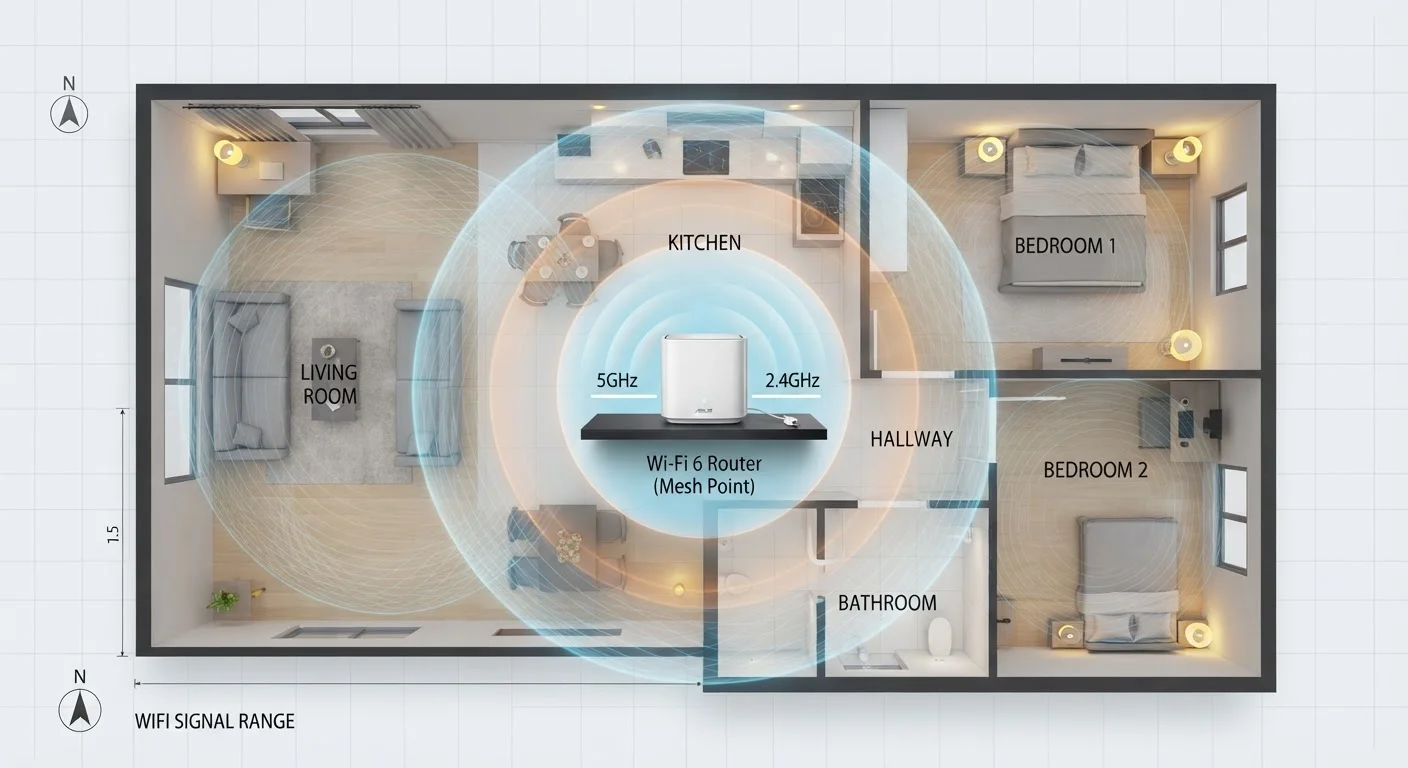
Photo: ConfiReads.com | Blogs For Inquisitive Minds editorial
Key Takeaways
- A centrally located router reduces the maximum distance signal must travel to any room.
- Dense materials like concrete, brick, and metal appliances absorb or reflect Wi-Fi signals significantly.
- Elevation matters: a router placed higher up broadcasts more evenly across a floor.
- Interference from microwaves and cordless phones can degrade the 2.4 GHz band.
- Placement alone can resolve many slow or dead-zone problems before you buy new hardware.
Why Radio Waves Don't Respect Your Floor Plan
Your router doesn't send internet through wires to every device — it broadcasts radio waves through your entire home, walls included. Those waves follow the laws of physics: they weaken over distance, reflect off hard surfaces, and get absorbed by dense materials. Understanding this helps explain why the same router can feel blazing-fast in one room and nearly useless in another.
Wi-Fi signal strength is measured in dBm. A signal of around −50 dBm is strong; anything below −80 dBm is effectively unusable for streaming or video calls. Every wall, floor, and appliance between your router and your device pushes that number lower. See our guide to home networking for a broader breakdown of how routers, modems, and bands work together.
~30%
Typical signal loss through a single concrete wall
Radio frequency engineering benchmarks show concrete walls can reduce Wi-Fi signal strength by roughly 25–40%, depending on thickness and density.
3–5 ft
Recommended router elevation from the floor
Networking guidance from hardware manufacturers and IT professionals consistently recommends elevating routers several feet off the floor for optimal lateral signal spread.
2.4 GHz
Band most vulnerable to household interference
Microwave ovens, older cordless phones, and many IoT devices share the 2.4 GHz spectrum, making interference a common cause of degraded Wi-Fi performance on that band.
What Actually Blocks or Weakens Your Signal
Not all obstacles are equal. Here's a general hierarchy of how common home materials affect Wi-Fi:
- Drywall and wood: Minor signal loss — most routers handle these easily.
- Plaster walls (older homes): Often contain wire mesh or thick layers that absorb significantly more signal than modern drywall.
- Brick and concrete: Heavy attenuation. A single concrete floor between levels can halve effective range.
- Metal: Reflects rather than absorbs — metal filing cabinets, refrigerators, and oven doors can create signal shadows behind them.
- Water: A strong absorber. Large fish tanks, water heaters, and even people standing between a router and a device cause measurable drops.
If your home has a specific architectural feature — a brick fireplace chimney running up the center, or a metal-framed basement — mapping your weak zones around those features first gives you a smarter starting point for repositioning.
Map Your Dead Zones Before You Move Anything
The Central, Elevated Principle
Two rules guide almost every good placement decision: central and elevated. Central means equidistant from the farthest points you want covered. Elevated means off the floor — ideally on a shelf or table at least three to four feet high. Routers broadcast signal in a roughly spherical pattern biased downward, so height lets that sphere spread laterally across your living space rather than into the ground.
In a single-story home, a central hallway or living room shelf is typically optimal. In a two-story home, placing the router on the upper floor of the lower level — or the lower floor of the upper level — helps serve both floors more evenly. Basements and attics are almost always poor choices because the router spends most of its energy beaming into concrete or insulation.
“Think of your router like a light bulb — if you put it in a closet, you shouldn't be surprised that the rest of the house is dark. Position is everything when it comes to wireless coverage.”
— Consumer networking guidance commonly attributed to Wi-Fi hardware engineers, General principle in home networking best-practice documentation
If you're consistently battling dead zones despite a reasonable router position, it may be time to consider whether a single router is the right tool for your home's footprint. Our comparison of mesh Wi-Fi systems covers when that upgrade genuinely helps.
Interference Sources You Might Be Overlooking
Physical obstructions aren't the only culprit. Devices that emit their own radio signals can compete with or corrupt your Wi-Fi, particularly on the crowded 2.4 GHz band:
- Microwave ovens: Operate at 2.4 GHz and actively interfere when running. Keep your router well away from the kitchen if possible.
- Older cordless phones: Many use 2.4 GHz frequencies. Upgrading to a DECT 6.0 model eliminates this conflict.
- Baby monitors and wireless cameras: Cheap models often broadcast on 2.4 GHz without coordination.
- Neighboring routers: In apartments or dense neighborhoods, your router's channel may overlap with others. Most modern routers auto-select channels, but manual adjustment can help in congested areas.
If your connection drops unpredictably at certain times of day, interference — not placement alone — may be the cause. Troubleshooting intermittent Wi-Fi drops follows a logical sequence to isolate whether the problem is placement, interference, or something else entirely.
Channel Congestion in Apartments
A Simple Relocation Test You Can Run Today
Before buying a signal booster or a mesh system, try this low-effort test. Move your router to a more central, elevated spot — even temporarily using an extension cord — and then walk through your home checking signal strength. On any smartphone, Wi-Fi signal bars give a rough real-time read. For more precision, free apps like WiFi Analyzer (Android) or built-in tools on macOS show actual dBm readings.
Note your signal strength in problem areas before and after. Many households find a 10–15 dBm improvement in weak rooms simply by moving the router from a back office or entertainment center corner to a more open, central shelf. If significant dead zones persist after repositioning, that's useful diagnostic information — it tells you placement alone won't solve the problem, and you can explore options with realistic expectations. For a full list of what not to do, see our article on router placement mistakes that quietly degrade coverage.
Frequently Asked Questions
The content on this site is for informational purposes only and is not a substitute for professional advice. Always consult a qualified professional for guidance specific to your situation.