
Everything You Need to Know About Home Networking

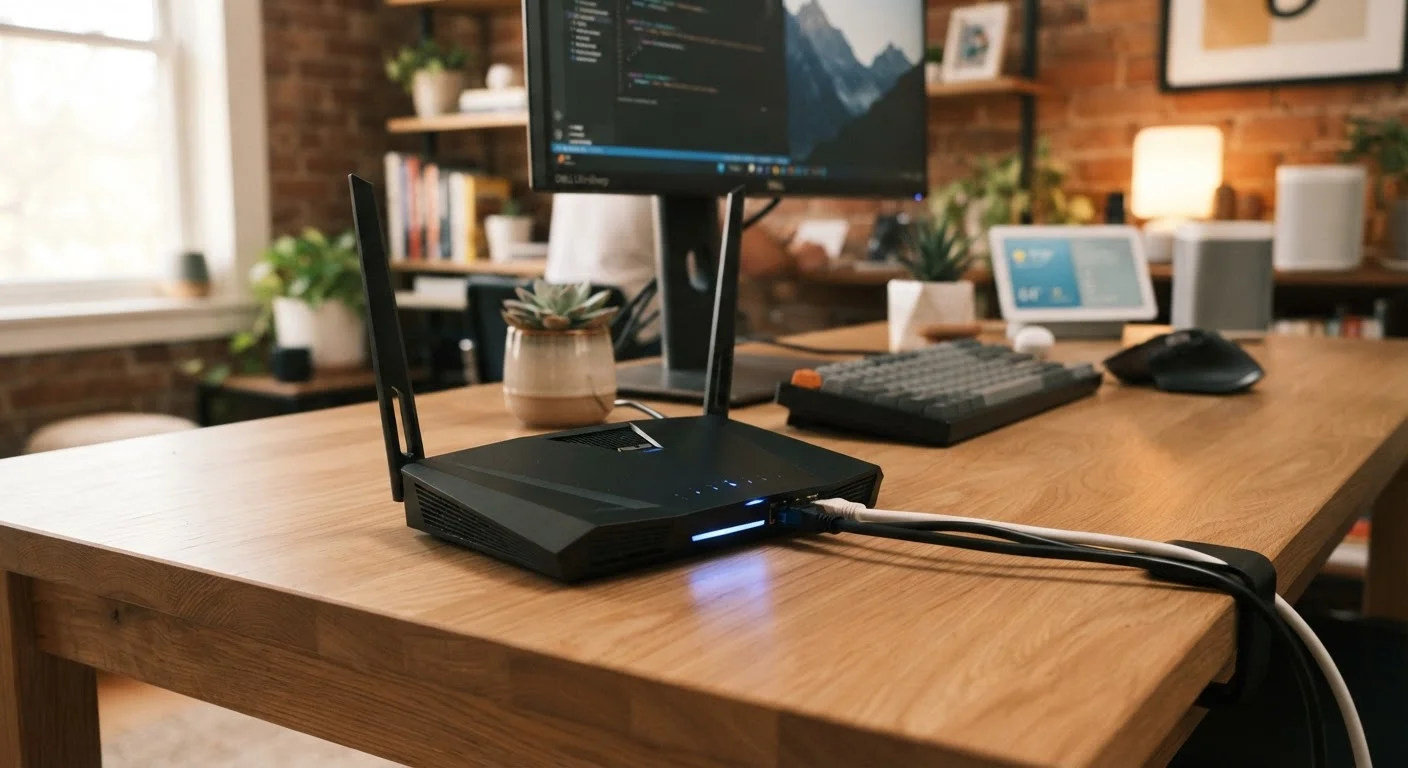
Photo: ConfiReads.com | Blogs For Inquisitive Minds editorial
Key Takeaways
- Your modem connects to the internet; your router distributes that connection inside your home.
- The 5 GHz Wi-Fi band is faster but shorter range; 2.4 GHz travels farther but more slowly.
- Wired Ethernet connections are more reliable and faster than Wi-Fi for stationary devices.
- Changing your router's default password is one of the most important security steps you can take.
- Most common Wi-Fi problems can be solved by rebooting equipment and checking band settings.
How a Home Network Actually Works
Your home network is essentially a small communications system — it moves data between your devices and the wider internet. When you stream a show or send an email, data travels from your device to a router, through a modem, out to your internet service provider (ISP), and across the internet to its destination. The same path runs in reverse when data returns to you.
Every device on your network — a laptop, phone, smart TV, or security camera — gets a private IP address (a numerical label that identifies it). Your router manages those addresses and directs traffic efficiently, acting like a post office inside your home. For a plain-English breakdown of terms like IP address, bandwidth, and latency, see our networking glossary.
Understanding this basic flow makes every other concept — from choosing equipment to fixing dropped connections — much easier to grasp.
Modem vs. Router: What Each Device Does
These two devices are often confused, and some ISPs rent you a single combo unit that performs both functions.
- Modem: Translates your ISP's signal (arriving via cable, fiber, or phone line) into a standard digital signal your home equipment can use. Without a modem, there is no internet connection.
- Router: Takes the modem's single connection and shares it across multiple devices wirelessly (Wi-Fi) and through physical ports (Ethernet). It also creates a private, protected network inside your home.
Buying your own modem and router separately often pays for itself within a year compared to renting ISP equipment — though you'll want to verify compatibility with your plan type before purchasing. For more on plan types, our guide to internet plans covers cable, fiber, DSL, and satellite in plain language.
If your ISP provides a combo modem-router unit, put it in 'bridge mode' and add your own router — you'll get far more control over your network settings and usually better performance.
Position your router elevated and away from the floor, ideally at the center of your home, and keep it away from microwaves and cordless phone bases to reduce signal interference.
Wi-Fi Bands Explained: 2.4 GHz vs. 5 GHz vs. 6 GHz
Modern routers broadcast on multiple radio frequency bands. Choosing the right one for each device makes a noticeable difference in performance.
| Band | Speed Potential | Range | Best For |
|---|---|---|---|
| 2.4 GHz | Lower | Longer, penetrates walls better | Smart home devices, devices far from router |
| 5 GHz | Higher | Shorter | Streaming, gaming, laptops nearby |
| 6 GHz (Wi-Fi 6E/7) | Highest | Shortest | High-bandwidth devices in close range |
Many routers use band steering — automatically assigning devices to the best band. If yours doesn't, manually connecting bandwidth-hungry devices to 5 GHz and keeping smart bulbs or sensors on 2.4 GHz is a practical strategy.
17+
Average connected devices per U.S. household
According to Deloitte's Digital Media Trends survey, the average American home now supports more than 17 internet-connected devices.
Wi-Fi 6
Current mainstream router standard
Wi-Fi 6 (802.11ax) became the dominant router standard in new consumer products, offering faster throughput and better performance in device-dense environments.
~30 ft
Typical 5 GHz effective indoor range
Industry benchmarks consistently show 5 GHz signals losing effectiveness beyond roughly 30 feet indoors when walls and obstructions are present.
Wired vs. Wireless: When to Use Each
Wi-Fi is convenient, but a physical Ethernet cable almost always delivers faster speeds, lower latency, and more consistent reliability. For devices that rarely move — desktop computers, gaming consoles, smart TVs, and streaming boxes — a wired connection is worth the minor setup effort.
Running Ethernet through walls requires planning; if that's not practical, powerline adapters (which send network signals over your home's existing electrical wiring) or MoCA adapters (which use coaxial cable) offer a middle ground between full wiring and pure Wi-Fi.
Label Your Ethernet Runs
Wireless is the right choice for phones, tablets, and laptops where portability matters. A mesh Wi-Fi system — multiple access points placed around your home — addresses dead zones more effectively than a single router, especially in larger or multi-story homes.
Home Network Security Basics
An unsecured network can expose every connected device in your home to outside threats. A few foundational steps significantly reduce that risk.
- Change default credentials: Routers ship with generic admin usernames and passwords that are publicly documented. Change both immediately after setup.
- Use WPA3 or WPA2 encryption: Check your router's wireless security settings and select WPA3 if available, or WPA2-AES at minimum. Avoid outdated WEP or WPA (TKIP) options.
- Create a guest network: Most modern routers support a separate guest Wi-Fi. Put smart home devices and visitors on it, isolated from your primary devices.
- Keep firmware updated: Router manufacturers release security patches. Log into your router's admin panel periodically to check for updates.
Never Leave Your Router on Default Settings
If you're setting up internet service for the first time, our first-time subscriber guide walks through equipment setup and ISP terminology from the beginning.
Troubleshooting Common Wi-Fi Problems
Most connectivity frustrations have straightforward causes. Work through these steps before assuming a hardware failure.
- Slow speeds throughout the home
- Reboot your modem and router by unplugging both for 30 seconds. Run a speed test at speedtest.net while connected via Ethernet to determine whether the problem is your ISP connection or your Wi-Fi.
- Dead zones in certain rooms
- Physical obstructions — concrete walls, metal appliances, floors — absorb Wi-Fi signal. Relocating your router to a central location helps. A mesh system or range extender addresses persistent dead zones.
- Devices dropping connection repeatedly
- Interference from neighboring networks or household devices (microwaves, cordless phones) can disrupt the 2.4 GHz band. Switching those devices to 5 GHz or changing your router's channel in its settings often resolves this.
- One device can't connect
- Forget the network on that device and reconnect from scratch. If the problem persists, check whether the router's DHCP address pool is full — this happens in households with many devices.
For broader home infrastructure context, understanding home living fundamentals — including how your electrical setup affects where you can place networking equipment — is also worth exploring. More tech how-tos are available in our Tech Tips & How-Tos hub.
The content on this site is for informational purposes only and is not a substitute for professional advice. Always consult a qualified professional for guidance specific to your situation.