
Wi-Fi Keeps Dropping? Here's Where to Actually Start

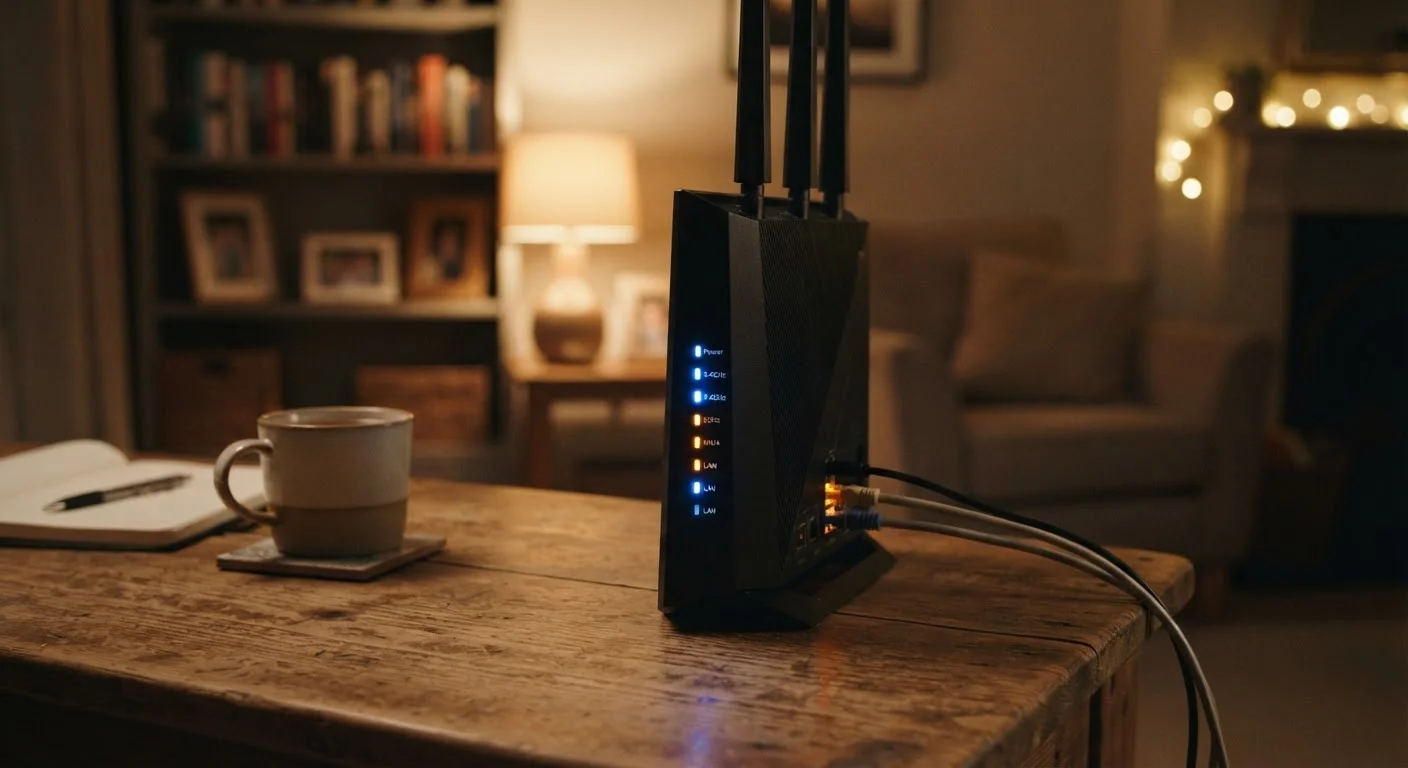
Photo: ConfiReads.com | Blogs For Inquisitive Minds editorial
Key Takeaways
- Most Wi-Fi drops trace back to a handful of common causes: hardware, interference, placement, or your ISP.
- Working through a logical sequence of checks saves time versus random troubleshooting.
- Restarting your router correctly — not just unplugging it — makes a measurable difference.
- Channel congestion from neighboring networks is a frequently overlooked culprit.
- If drops only affect one device, the problem is that device, not your router.
Why Logical Sequencing Matters
Dropping Wi-Fi is one of the most common home tech complaints — and one of the most misdiagnosed. Most people restart their router and hope for the best, or assume the problem is the router when it might be the modem, the ISP, a single device, or even the physical location of the hardware. Skipping straight to solutions wastes time and can introduce new problems.
The steps below work from the outside in: first confirming whether the problem is even Wi-Fi, then checking the most likely hardware causes, then looking at configuration, and finally escalating to your provider if needed. This approach narrows the search efficiently rather than guessing. If drops happen only at certain times of day, it's also worth reading about why Wi-Fi slows at night — some patterns point directly at the cause.
Don't Skip the Ethernet Test
What You'll Need Before You Start
You don't need specialized tools or technical expertise. Most of this process involves basic checks, a browser, and — if needed — a phone call to your ISP. Having a few items ready makes the process smoother.
What you will need
Router admin panel
Access settings for channel selection, firmware updates, and connected device management.
Wi-Fi analyzer app
Scans nearby wireless networks to identify channel congestion affecting your signal.
Ethernet cable
Lets you test whether the problem is your Wi-Fi specifically or your broader internet connection.
Follow These Steps in Order
Work through each step before moving to the next. If a step resolves the problem, you're done — there's no need to continue. If not, the next step builds on what you've already ruled out.
Determine whether it's Wi-Fi or your internet connection
Plug a laptop or desktop directly into your router using an Ethernet cable and browse normally for a few minutes. If the connection stays stable, your internet service is working — the problem is confined to Wi-Fi. If it still drops, the issue is upstream: your modem, the cable line, or your ISP.
Check whether only one device is affected
Test the connection on two or three different devices — a phone, a laptop, a tablet. If drops only happen on one device, focus there first: forget the network on that device, restart it, and reconnect. Update the device's network drivers or Wi-Fi firmware if available. This narrows the problem quickly and avoids unnecessary router changes.
Restart your router and modem properly
This is not simply unplugging and immediately replugging. Unplug your modem first, wait 30 seconds, then unplug the router. Wait another 30 seconds. Plug the modem back in and wait until its lights stabilize — usually 60–90 seconds. Then plug the router back in. This full power cycle clears temporary memory faults and forces the modem to renegotiate a clean connection with your ISP.
Check for router firmware updates
Log into your router's admin panel — typically by typing 192.168.1.1 or 192.168.0.1 into a browser address bar. Look for a firmware or software update section. Manufacturers release firmware updates that patch bugs causing instability, including random disconnections. Install any available update, then let the router restart.
Check your Wi-Fi channel for congestion
In dense neighborhoods or apartment buildings, dozens of routers compete on the same wireless channels. For the 2.4 GHz band, channels 1, 6, and 11 are the non-overlapping options — pick whichever your neighbors use least. For 5 GHz, there are more channels available and congestion is usually less severe. A free Wi-Fi analyzer app on your phone can show which channels nearby networks occupy. Change your router's channel in the admin panel under wireless settings.
Evaluate your router's physical location
Walls, floors, appliances, and even large furniture absorb or reflect Wi-Fi signals. If your router is tucked inside a cabinet, placed on the floor, or positioned at one end of your home, signal quality at the far end will suffer — leading to drops when the signal falls too low to maintain a connection. A central, elevated, open location dramatically improves consistency. See our guide to router placement for a full breakdown of what blocks signal and why.
Contact your ISP if the problem persists
If you've worked through the steps above and drops continue — especially over Ethernet — the problem is likely outside your home. Call your ISP and ask them to run a line diagnostic. Request a technician visit if they detect signal degradation on the line. Also ask when your modem was last replaced; modems older than four to five years can develop hardware faults that cause intermittent drops.
Evening Drops Follow a Different Pattern
Factory Reset Erases Everything
When the Problem Turns Out to Be Coverage, Not Drops
Sometimes what feels like a dropping connection is actually a signal that's too weak to sustain use in certain rooms — the device holds the connection technically, but performance degrades to the point of failure. If your drops only occur in specific areas of your home, the issue is coverage rather than instability. Start with placement fixes described in our article on router placement mistakes.
If placement adjustments aren't enough for a larger home, a mesh Wi-Fi system may be worth considering — though they come with their own trade-offs. Our overview of mesh Wi-Fi systems gives an honest look before you commit to the upgrade. And if your connection stays connected but just feels slow, that's a separate issue — why your internet is slower than advertised walks through the most common speed-loss points.
The content on this site is for informational purposes only and is not a substitute for professional advice. Always consult a qualified professional for guidance specific to your situation.