
Internet & Connectivity

Before You Call Your ISP: A Connection Troubleshooting Checklist

Before You Call Your ISP: A Connection Troubleshooting Checklist

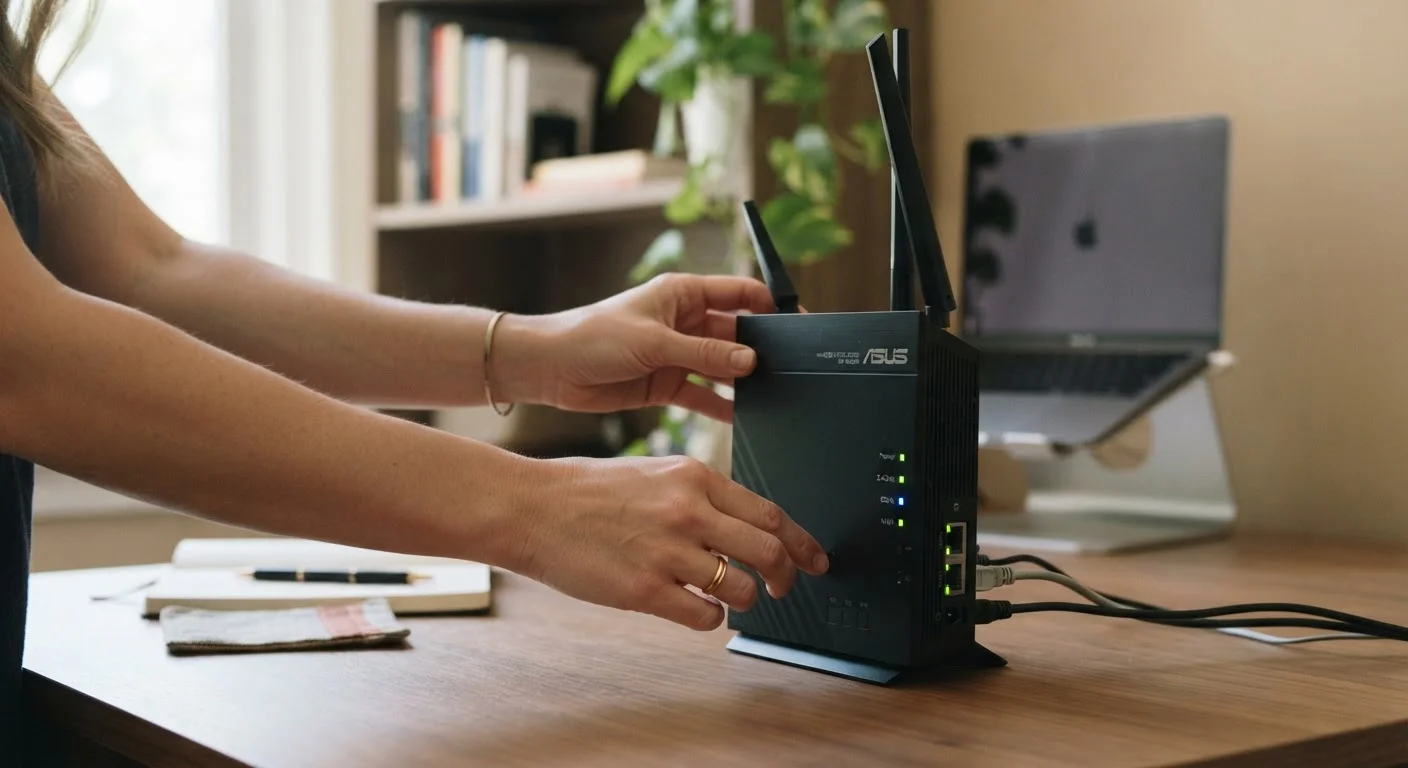
Photo: ConfiReads.com | Blogs For Inquisitive Minds editorial

Run through these checks before spending time on hold. Most common home internet problems can be identified and resolved without a technician.

Key Takeaways

  • Most home internet outages stem from equipment, not your ISP's network infrastructure.
  • A simple power cycle of your modem and router resolves a large share of connectivity problems.
  • Testing with a wired connection isolates whether Wi-Fi or your broader connection is the issue.
  • Checking your ISP's outage map before calling can save significant time on hold.
  • Outdated router firmware and overheating equipment are frequently overlooked culprits.

Why This Checklist Saves You Time

Calling your ISP's support line often means long wait times, scripted troubleshooting, and occasionally a technician visit that costs money — only to discover the fix was a simple reboot. The good news: the majority of home internet problems originate inside your home, not on your provider's network. Working through a structured checklist before you call lets you either fix the problem yourself or arrive at the support line with specific, useful information that speeds up the process.

This checklist is organized so you start with the fastest, least invasive checks and progress toward more involved steps. If something fixes the problem along the way, you're done. If you work through the full list without resolution, you'll have genuine evidence of an external issue — making your ISP conversation far more productive.

For context on how your connection type affects troubleshooting, see our side-by-side comparison of DSL, cable, fiber, satellite, and fixed wireless — the symptoms and solutions can differ depending on what technology delivers your service.

First 60 Seconds

Check all indicator lights on your modem and router and compare their patterns to your device's manual or the label on the unit — unexpected red or amber lights often identify the problem immediately. Must
Visit your ISP's outage map or status page (typically available on their website or app) to rule out a known outage in your area before troubleshooting local equipment. Must
Try loading a website on a second device — such as a phone or tablet — to confirm whether the problem is limited to one device or affects your entire network. Must

Power and Hardware Reset

Unplug your modem's power cable from the wall outlet, wait a full 60 seconds, then plug it back in and allow 2–3 minutes for it to fully reconnect before testing. Must
After the modem reconnects, power cycle your router the same way — unplug, wait 60 seconds, reconnect — rather than pressing just the reset button, which may restore factory defaults. Must
Inspect all cable connections at the back of your modem and router, including the coaxial or phone line entering from the wall, and reseat any that feel loose. Must
Check that your modem and router are not enclosed in a cabinet or stacked under other electronics — overheating causes intermittent drops and is a commonly missed issue. Should

Isolate Wi-Fi vs. Your Broader Connection

Connect a laptop or desktop directly to your modem or router using an Ethernet cable and test your connection — if it works wired but not wirelessly, the problem is your Wi-Fi, not your service. Must
On the affected wireless device, forget the Wi-Fi network and reconnect by re-entering the password, which clears stale connection data that can cause authentication failures. Should
If you use a mesh network system, check the companion app for any nodes showing as offline or showing a weak backhaul connection to the main unit. Should

Check for Local Interference and Settings

Move your router away from microwaves, baby monitors, and cordless phones, which operate on the 2.4 GHz frequency band and can disrupt wireless signals. Should
Log into your router's admin interface (usually via 192.168.1.1 or 192.168.0.1 in a browser) and check for a firmware update — outdated firmware causes performance and stability problems. Should
Verify your router's DNS settings haven't changed unexpectedly; if unsure, reset them to your ISP's default or to a public DNS address such as 8.8.8.8. Nice to have

Device-Level Checks

Disable and re-enable the Wi-Fi adapter on the affected device, or toggle Airplane Mode on and off on a phone or tablet, to force it to renegotiate the wireless connection. Must
Clear the DNS cache on a Windows computer by opening Command Prompt and running ipconfig /flushdns, which resolves many cases where websites fail to load despite a working connection. Should
Check whether a VPN or security software on the device is blocking traffic — temporarily disabling these can confirm or rule out software interference. Should

Before You Call

Write down your account number, the model numbers of your modem and router, a description of when the problem started, and the results of each step you completed — this shortens the support call significantly. Must
Run a speed test at a site such as fast.com or speedtest.net while connected via Ethernet and note the download and upload figures — this gives the support agent objective data to work with. Should

What You'll Need

Gather these items before you begin. Most are already in your home.

Required

Ethernet cable

Connects a device directly to the modem or router to test whether the issue is isolated to Wi-Fi.

Required

Laptop or desktop computer

Used for wired connection testing and accessing router admin settings in a browser.

Required

Smartphone or tablet

Provides a second wireless device to confirm whether a problem affects one device or all devices.

Required

Router admin credentials

Required to log into your router's settings page to check firmware and configuration.

Required

ISP account information

Your account number and service address, needed if you proceed to calling support.

Optional

Router/modem user manual or label

Explains what each indicator light pattern means for your specific hardware model.

Understanding What You Find

If the checklist reveals that your equipment is functioning normally — solid indicator lights, clean power, no local interference, firmware current — and the problem persists across both wired and wireless devices, that is meaningful evidence of a provider-side issue. Document which steps you completed and what you observed before calling. Support agents can escalate faster when a caller can say, "I've rebooted the modem, connected directly via Ethernet, confirmed firmware is current, and checked your outage map — no listed outage in my area."

Don't Press the Reset Button Without Thinking

The small recessed reset button on most routers restores factory default settings, which wipes your custom Wi-Fi name, password, and any configured settings. This is different from a power cycle. Only use the reset button if you intentionally want to start your router configuration from scratch, and make sure you have your ISP login credentials available if your modem requires them after a full reset.

Speed disappointments are a separate category from connectivity failures. If your connection works but feels slow, the causes are often different from a full outage. Our article on why your internet is slower than what you're paying for covers that territory in detail. Similarly, speed myths that cost people money explains why upgrading your plan sometimes makes no difference at all.

For a broader reference on routers, modems, Wi-Fi bands, and home network design, the complete home networking guide is a useful companion to keep bookmarked.

Rented Equipment May Need ISP Involvement

If you rent your modem directly from your ISP rather than owning your own, some configuration changes — and in some cases even reboots pushed remotely — are managed on their end. If your rented modem shows solid lights and passes your checks but still has no internet signal, the ISP may need to reprovision the device from their side. This is a legitimate reason to call that no amount of local troubleshooting will resolve.

Tech & Electronics Editorial Team

ConfiReads.com | Blogs For Inquisitive Minds

Tech & Electronics Editorial Team is the collective byline for our editorial team and contributor network. Articles published under this byline or an editorial pen name are researched, written, and reviewed according to our editorial standards for clarity, consistency, and independence before publication.

Devices & GadgetsTech Tips & How-TosInternet & Connectivity
View author profile

The content on this site is for informational purposes only and is not a substitute for professional advice. Always consult a qualified professional for guidance specific to your situation.