
Why Your Devices Keep Running Out of Storage - and What's Actually Using It

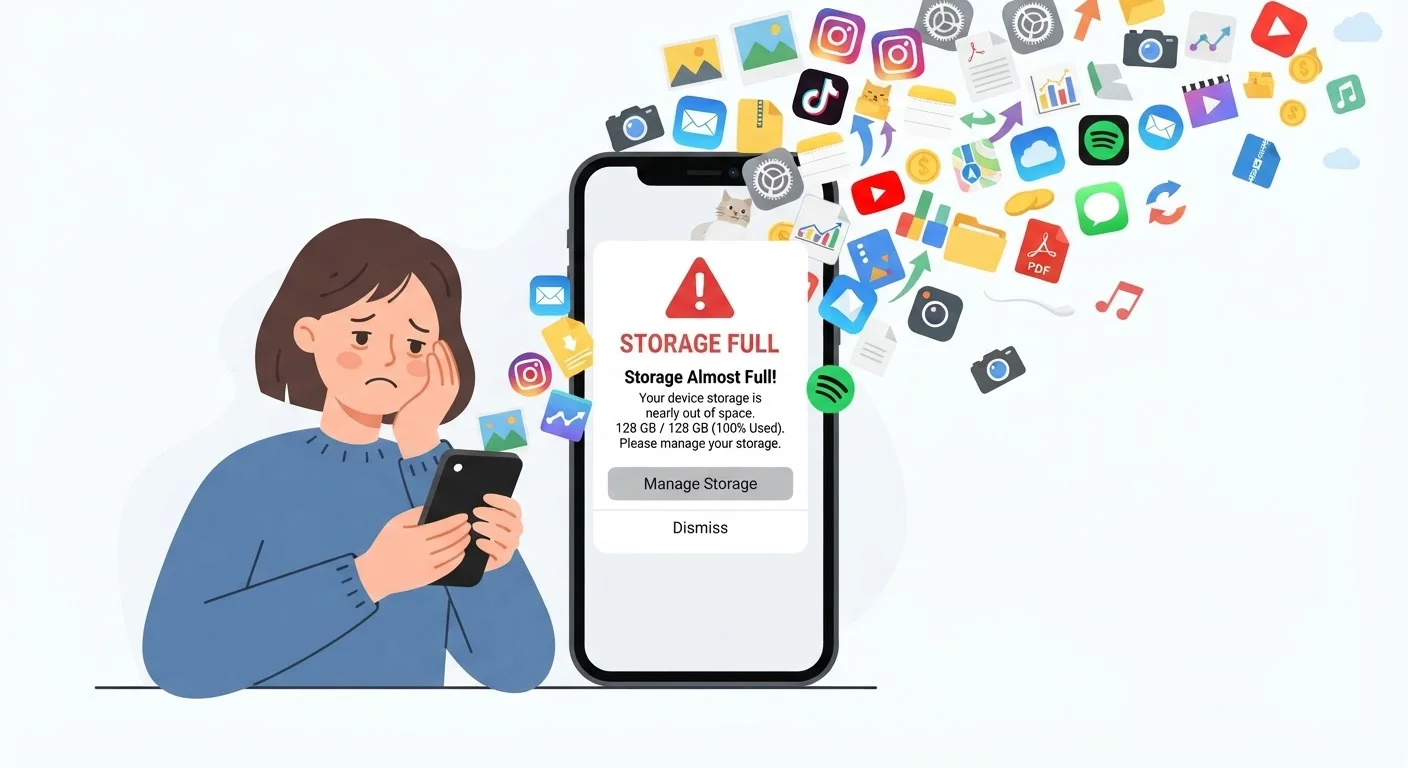
Photo: ConfiReads.com | Blogs For Inquisitive Minds editorial
Key Takeaways
- The operating system and pre-installed apps consume storage before you add anything yourself.
- Photos, videos, and app data are typically the biggest culprits on phones and tablets.
- Apps accumulate cache and offline data silently over time, expanding well beyond their install size.
- Understanding what's using space is the first step toward reclaiming it without losing important files.
- Cloud storage can offload large files without deleting them permanently from your life.
Why Storage Fills Up Faster Than You'd Expect
You bought a 128 GB phone. You've added a few apps and taken some photos. Yet somehow, a storage warning appears within months. This isn't unusual - and it's rarely your fault. Several invisible processes are consuming space from the moment you power the device on.
First, the operating system itself is a major occupant. iOS and Android each require multiple gigabytes just to run, and system updates add to that total over time. A device advertised at 128 GB may offer only 110-115 GB of usable space out of the box. On laptops running Windows or macOS, the gap between advertised and available storage is often even wider.
Second, pre-installed apps - sometimes called bloatware on Android devices - occupy space you didn't choose to use. Manufacturer apps, carrier apps, and bundled software can collectively consume several gigabytes before you've downloaded anything.
10-20 GB
Typical operating system storage footprint on smartphones
iOS and Android installations, including core system files, consume this range before any apps or personal content are added.
400+ MB
Size of one minute of 4K smartphone video
At typical 4K/30fps bitrates used by modern smartphone cameras, video fills storage faster than most users anticipate.
30-50 GB
Operating system and recovery partition size on Windows laptops
Windows installation files, recovery partitions, and manufacturer software routinely consume this much on a new laptop before personal use begins.
The Hidden Culprits: App Data, Cache, and Media
Once you start using your device, three categories tend to dominate storage consumption: app data, cached files, and media.
App data grows quietly in the background. A navigation app downloads offline maps. A podcast app stores episodes for offline listening. A social media app caches posts, images, and videos so they load faster. These stored files accumulate without any visible prompt, and an app that was 200 MB at install might balloon to several gigabytes within a year of regular use.
Cache is temporary data apps store to speed up future loading. While it serves a purpose, it can grow unchecked. To understand exactly how cache works and when removing it actually helps, see our plain-language explainer on cache.
Media files - photos and videos in particular - are the single largest consumer on most people's devices. A one-minute 4K video can exceed 400 MB. If your camera is set to shoot in high resolution (which is the default on most modern phones), a vacation's worth of footage fills storage alarmingly fast.
Check Your Camera Settings First
What's Different About Laptops vs. Phones
Laptops and phones handle storage differently in ways that matter for everyday users. On a laptop, application installation files tend to be much larger - a professional creative suite can occupy 20-50 GB on its own. Operating system files and their recovery partitions also take up substantial space, often 30-40 GB on a Windows machine.
Downloads folders are a common overlooked drain. Software installers, PDF documents, and video files accumulate there silently because most people never return to clear them out. On Mac, the System Data category in storage settings often surprises users - it bundles local backups, caches, and logs that can collectively run into tens of gigabytes.
Phones, by contrast, pack more of their growth into app data and media. Because phones are always with us and always connected, apps refresh content constantly and the camera gets used far more than a laptop's typically does.
Poor storage habits can also affect how long a device stays useful. Our piece on habits that quietly shorten device lifespan covers how storage management connects to overall device health.
Making Sense of Your Storage - and What to Do Next
The most useful first step is checking the actual storage breakdown on your device rather than guessing. Both iPhone and Android provide a visual chart in Settings that shows exactly how much space each category - apps, photos, system, and other - occupies. Windows and macOS offer similar built-in tools.
Once you know what's using space, you can make informed decisions: offloading rarely used apps, moving photos to a cloud service, or clearing accumulated app data. If your phone is already full, our step-by-step guide to freeing up space walks through the process without risking your photos or important files.
For ongoing maintenance, keeping an eye on storage as part of regular device upkeep pays off. Our guide on maintenance habits that keep devices fast includes storage alongside other practical routines. And if you haven't set up automatic backups yet, that's worth doing before your storage situation becomes a data-loss situation - see our guide to backing up your phone for a straightforward setup walkthrough.
Frequently Asked Questions
The content on this site is for informational purposes only and is not a substitute for professional advice. Always consult a qualified professional for guidance specific to your situation.