
When a Slow Computer Means Malware — and When It Just Means Clutter

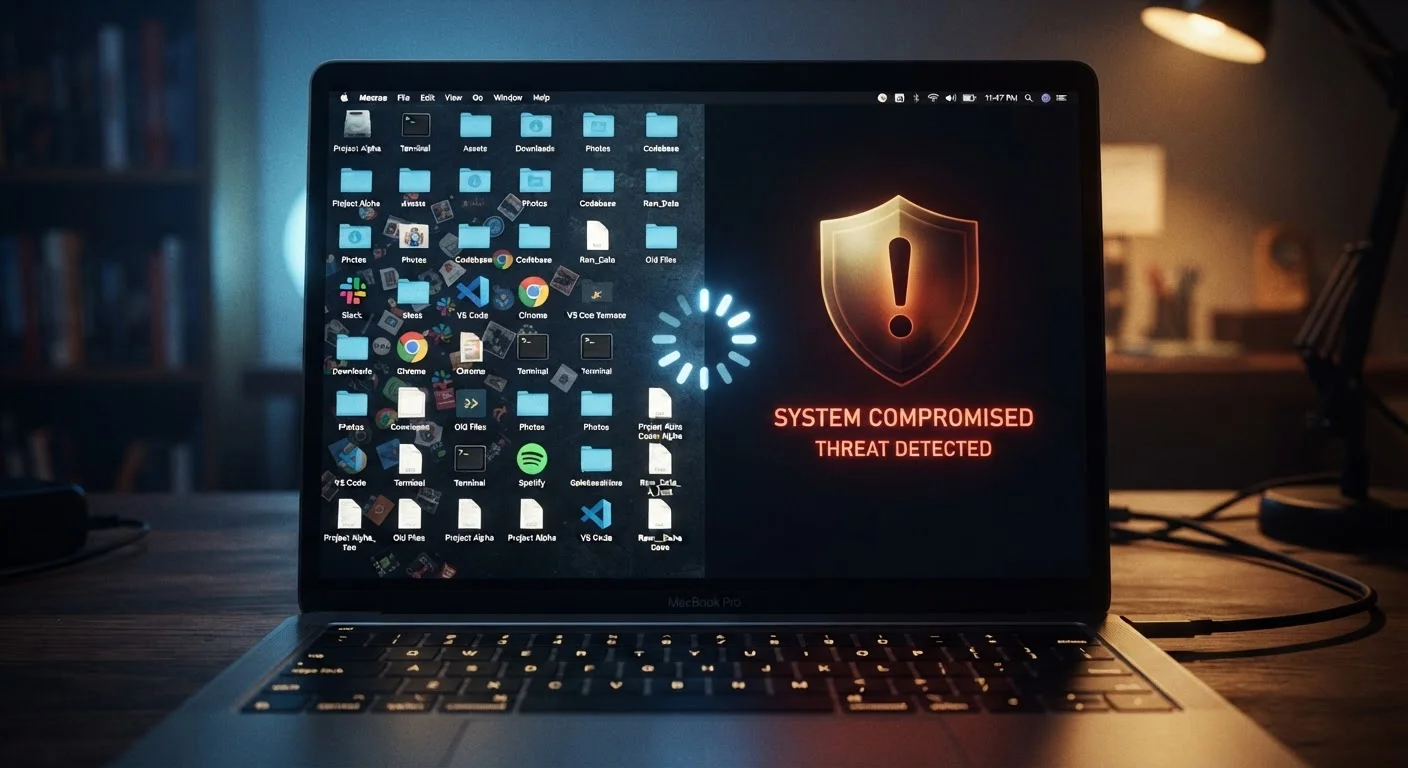
Photo: ConfiReads.com | Blogs For Inquisitive Minds editorial
Key Takeaways
- Most slow computers are caused by clutter, aging hardware, or too many startup programs — not malware.
- Malware slowdowns are usually accompanied by other red flags like pop-ups, redirected searches, or unknown processes.
- A free, reputable antivirus scan is a reliable first step when you suspect an infection.
- Routine digital maintenance — clearing junk files, managing startup apps — resolves the majority of slowdowns.
- Knowing which problem you're dealing with saves time and prevents unnecessary worry.
Why Slow Computers Get Blamed on Viruses
When a computer starts dragging, the fear of malware is a natural first instinct — and not an unreasonable one. But statistically, everyday digital clutter is the far more common culprit. Startup programs pile up, hard drives fill with old files, temporary data accumulates, and aging hardware simply can't keep up with modern software demands.
The problem is that both causes can feel nearly identical from the user's side: apps take longer to open, the machine takes forever to boot, and everything just feels sluggish. Knowing how to read the symptoms more carefully is what separates a five-minute fix from hours of unnecessary troubleshooting.
For context on how unrelated network factors can also create the impression of a slow device, see our article on internet speed myths that cost people real money — sometimes what feels like a slow computer is actually a connectivity issue.
| Clutter & Hardware | Malware Infection | |
|---|---|---|
| Onset pattern | Gradual, over weeks or months | Often sudden, within hours or days |
| Pop-ups or redirects | Rare or none | Common, often aggressive |
| Unknown programs present | Usually not | Frequently yes |
| Security software affected | No change | May be disabled or blocked |
| Primary fix | Cleanup, startup trim, free disk space | Security scan and removal |
| Risk to personal data | Low | Potentially high |
| Cost to resolve | Usually free (built-in tools) | Free tools often sufficient; some cases need help |
Signs Your Slowdown Is Just Clutter
Clutter-related slowdowns tend to develop gradually and follow predictable patterns:
- Slow boot times that have crept up over months as more programs set themselves to launch at startup.
- Low disk space warnings — when a drive is more than 85–90% full, Windows and macOS both struggle to manage virtual memory and temporary files efficiently.
- High memory usage with many browser tabs or applications open, especially on machines with 4GB of RAM or less.
- Fan noise and heat from dust buildup restricting airflow, causing the processor to throttle its own speed to avoid overheating.
These issues respond well to straightforward maintenance: uninstalling unused apps, trimming startup programs (via Task Manager on Windows or System Settings on Mac), clearing temporary files, and freeing up disk space. You can also learn more about when clearing cache actually helps — it's a commonly misunderstood fix that's genuinely useful in the right circumstances.
Quick Clutter Check Takes Under Five Minutes
Signs Your Slowdown Might Be Malware
Malware-driven slowdowns tend to have a different fingerprint. Watch for these warning signs alongside the sluggishness:
- Sudden onset — the machine was fine yesterday and is dramatically slower today without any obvious cause.
- Unexplained pop-ups or browser redirects, especially ones pushing fake security alerts or prize claims.
- New toolbars, extensions, or a changed homepage you didn't install or authorize.
- Unknown processes consuming CPU or memory — visible in Task Manager (Windows: Ctrl + Shift + Esc) or Activity Monitor (Mac).
- Disabled security software or antivirus tools that suddenly won't open or update.
Never Pay for Security Software Via a Pop-Up
If two or more of these appear together, run a full scan with a reputable security tool before doing anything else. Windows Defender (built into Windows 10 and 11) is a solid starting point at no cost. Third-party options like Malwarebytes offer free versions useful for a one-time scan. Do not pay for software in response to an on-screen pop-up — that tactic is itself a common scam.
A Practical Step-by-Step Approach
When your computer slows down, work through this sequence before assuming the worst:
- Check disk space. If your main drive is nearly full, that alone can explain most slowdowns. Delete or move large files and empty the Recycle Bin or Trash.
- Review startup programs. Trim any application you don't need running the moment you log in.
- Restart the machine. A simple reboot clears memory and applies pending updates — it resolves more problems than most people expect.
- Run a security scan. Even if you suspect clutter, a quick scan with Windows Defender or a trusted tool rules out infection cleanly.
- Check for software updates. Outdated operating systems and drivers can cause compatibility slowdowns that mimic both clutter and malware.
For more habits that keep devices running well long-term, see our guide on maintenance habits that actually work — small consistent actions make a bigger difference than periodic deep-cleans.
85%+
Drive fullness that degrades PC performance
Both Windows and macOS require free disk space to manage virtual memory and temporary files; most operating system guidance recommends keeping drives below 85% capacity.
~30%
PCs with unused startup programs slowing boot
Industry estimates suggest a significant share of consumer PCs accumulate startup entries from software installations that users never intentionally enabled.
The content on this site is for informational purposes only and is not a substitute for professional advice. Always consult a qualified professional for guidance specific to your situation.